Your charger.
Ready to host.
A practical guide for Zvolta hosts: install your charger, connect it to the network, complete commissioning, and manage it day to day.
- Install safelySite readiness guidance
- Connect reliablyWi-Fi and GSM setup
- Commission correctlyApp-based test session
- Operate confidentlyPartner portal guidance
Find your charger. Follow its guide.
Select the charger installed at your location to review its specifications and site requirements.
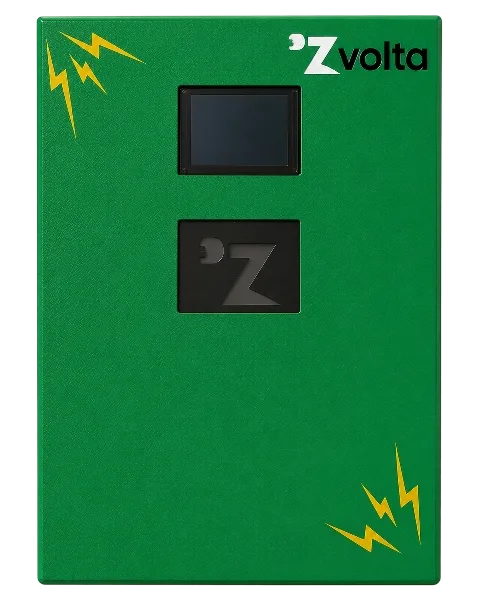
Zvolta 3 kW
A compact single-phase AC charger for homes, EV bikes, scooters, small offices and low-traffic sites. Smart software and free standard installation are included.
- Input
- 1 phase, 230 V AC, 50 Hz
- Rated output
- 3.3 kVA / 16 A
- Output
- 1 phase, 230 V AC, 50 Hz
- Socket
- Universal AC socket (types A, B, C, D, F, G)
- Dimensions
- 305 × 381 × 175 mm
- Ingress protection
- IP54
- Protection
- 30 mA RCD, overload, over-voltage, tamper detection, vandalism protection
- Connectivity
- Wi-Fi and GSM
- Operating temperature
- −5°C to +60°C
- Humidity
- Up to 95%
- Wiring: red
- Live
- Wiring: blue
- Neutral
- Wiring: yellow/green
- Earth
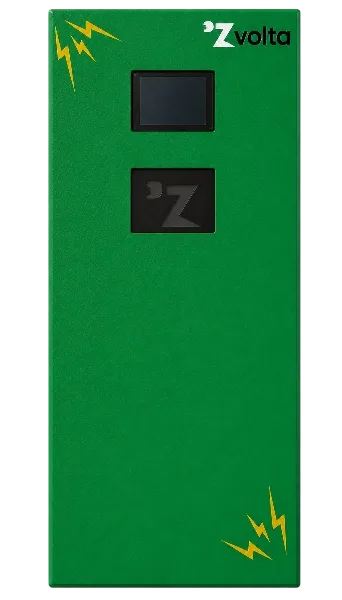
Zvolta 7 kW
A smart AC charger with a Type 2 gun for homes, apartments, offices and other places where cars park for a while. It runs on single-phase power, so it is easy to install.
- Input
- 1 phase, 230 V AC, 50 Hz
- Rated output
- 7 kVA / 32 A
- Output
- 1 phase, 230 V AC, 50 Hz
- Connector
- Type 2 gun
- Dimensions
- 305 × 685 × 175 mm
- Ingress protection
- IP54
- Protection
- 30 mA RCD, overload, over-voltage, level 3 surge protection, tamper detection
- Connectivity
- Wi-Fi and GSM
- Operating temperature
- −5°C to +60°C
- Humidity
- Up to 95%
- Wiring: red
- Live
- Wiring: blue
- Neutral
- Wiring: yellow/green
- Earth
Start with a safe site.
A qualified electrician or Zvolta-approved installation partner must complete all electrical work.
- 01
Check the location
Use a strong, dry, accessible mounting surface. Keep clear of standing water, likely impact and trip hazards.
- 02
Prepare power
Provide a dedicated single-phase 230V AC circuit rated for the selected charger capacity.
- 03
Connect correctly
Red: Live. Blue: Neutral. Yellow/Green: Earth/Ground. Isolate supply before all electrical work.
- 04
Check coverage
Confirm reliable Wi-Fi coverage or GSM signal at the charger's exact final position.
Connect the charger to the network.
Use this installer-only process after completing the electrical connection and powering on the charger.
Before you start. Connect your phone to the charger's temporary ZVOLTA network. A "No internet connection" message is normal during setup.
- 01
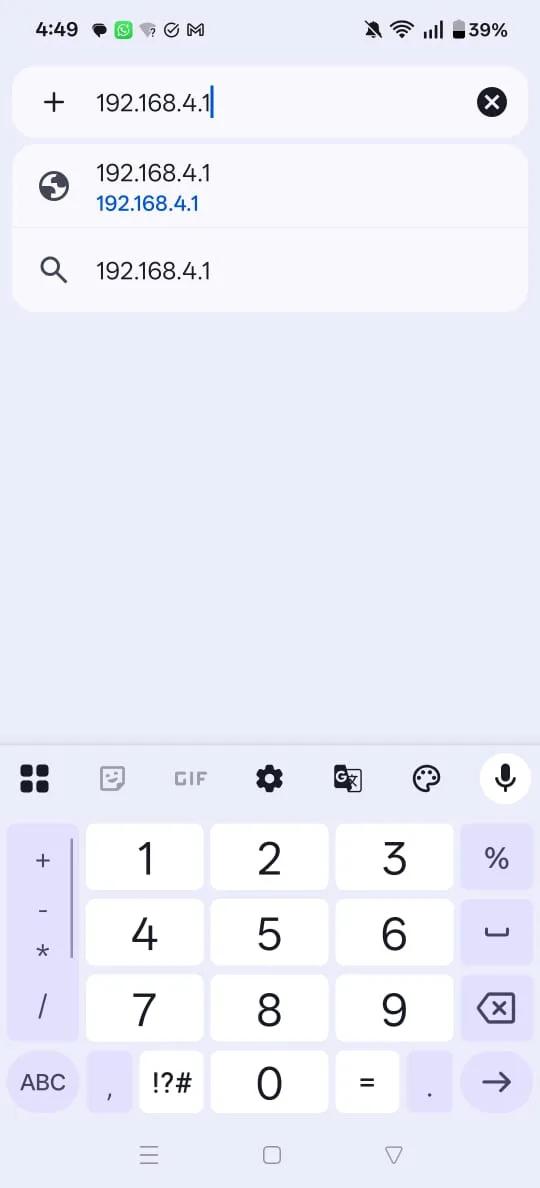
Connect to the charger
After the electrical connection is complete and the charger is powered on, open Wi-Fi settings on your phone and join the temporary network named similar to ZVOLTA-144EF9.
- 02
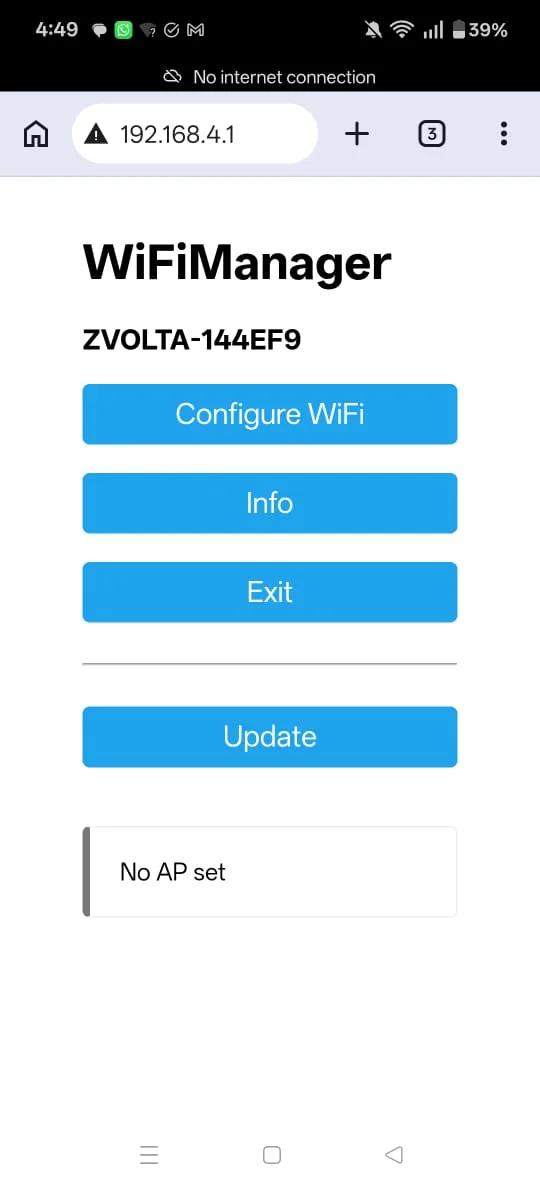
Open WiFiManager
Your phone may show 'No internet connection'; this is expected. Open a browser, enter 192.168.4.1, then select Configure WiFi.
- 03
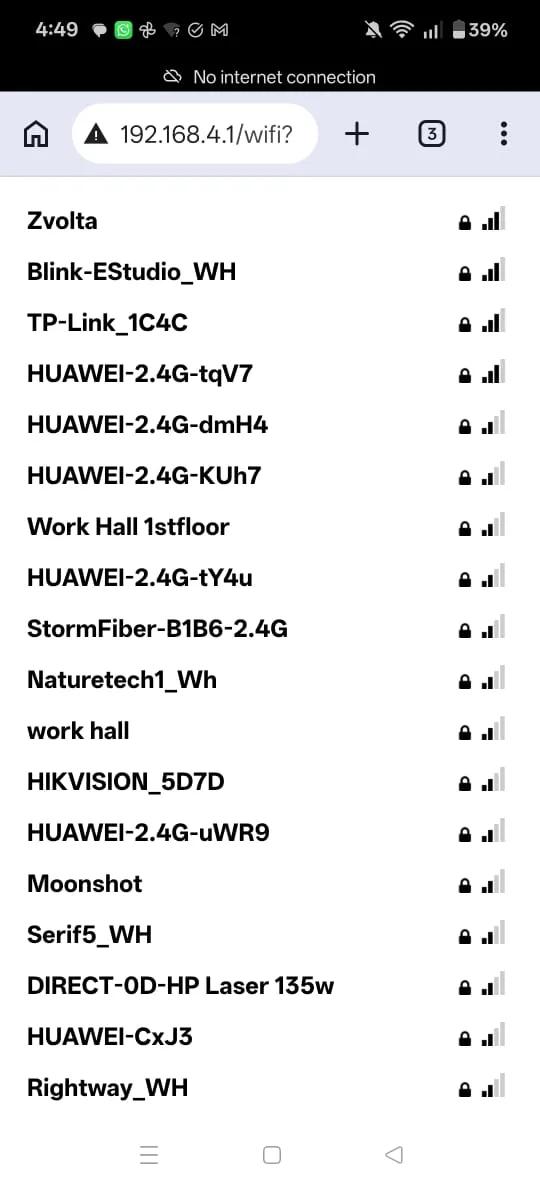
Choose the site network
Select the Wi-Fi network that will provide stable coverage at the charger's final installation location.
- 04
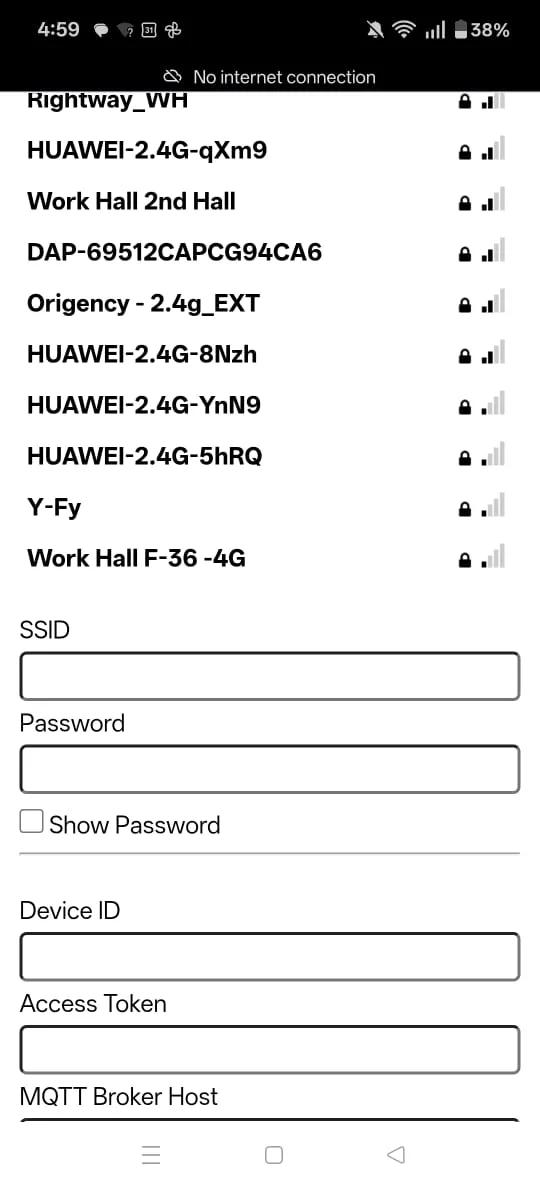
Enter Wi-Fi details
Enter SSID (the Wi-Fi name) and Password (the Wi-Fi password). Do not edit Device ID, Access Token, MQTT fields, GSM APN, or charger capacity unless instructed by Zvolta.
- 05
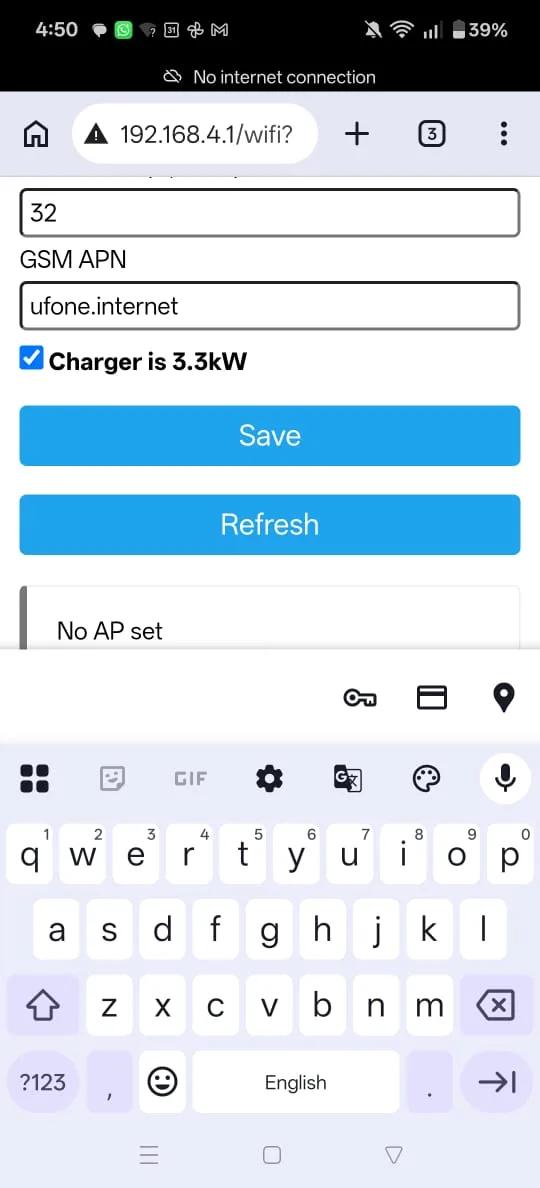
Save and verify
Press Save. Wait for the charger to reconnect and confirm it appears online on the Zvolta platform before handover.
Restart. Scan. Test.
- Restart: Switch the internal MCB inside the charging box off, wait a few seconds, then switch it back on.
- Wait for the QR: Once the QR code displays, the charger is ready for commissioning.
- Run a live test: Use the Zvolta Customer App to scan the QR, start a session, stop it, and confirm the record appears on the platform.
- GSM setup: When using GSM, complete the same restart and test-session process once the QR code displays.
Simple for drivers. Clear for partners.
Start a charging session
- Sign in using your registered mobile number.
- Connect the compatible cable or charging gun.
- Scan the charger QR code or select the charger in the app.
- Tap Start Charging and monitor the session.
- Tap Stop Charging before disconnecting.
Keep the site running
- View live charger status
- Monitor online and offline chargers
- Review sessions, consumption and revenue
- Identify chargers that need attention
- Track transaction history
Keep charging with confidence.
Do not use a charger that has visible damage, water ingress, a damaged cable, loose connections or an unresolved fault message.